Adding vCenter inventory into VCF Automation

  1. Login as admin to the system tenant
  2. From Organisation select your Organisation you want to manage and choose link: Launch Organization Portal
  3. Under library, select workflow, change the view to the tree (right side near the hamburger button)
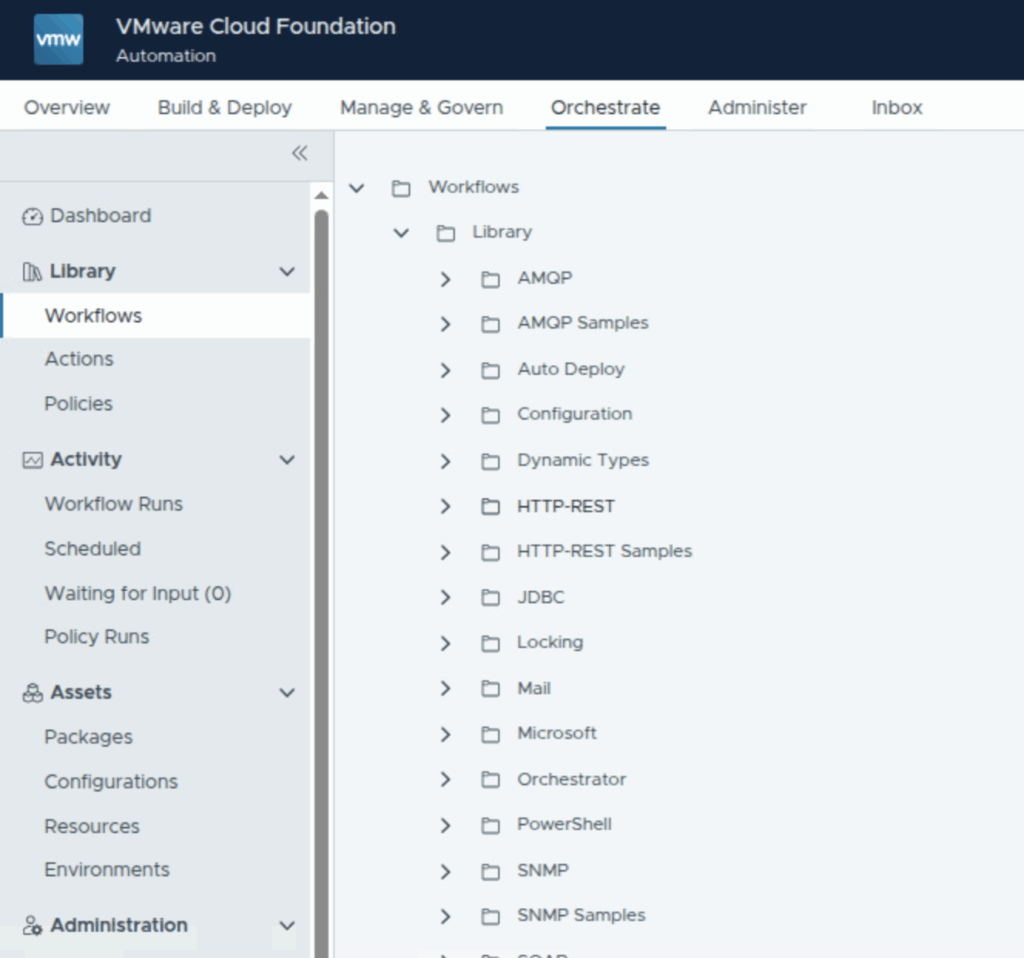
4. From tree, expand vCenter and run workflow: Add a vCenter instance. It might be required to disable option “Do you want to create a session per user to the vCenter?”

5. Under Administration -> Inventory, select vCenter and verify if Datacenters folder is visible


Now you can run workflows over that vCenter.

Create folder for that vCenter
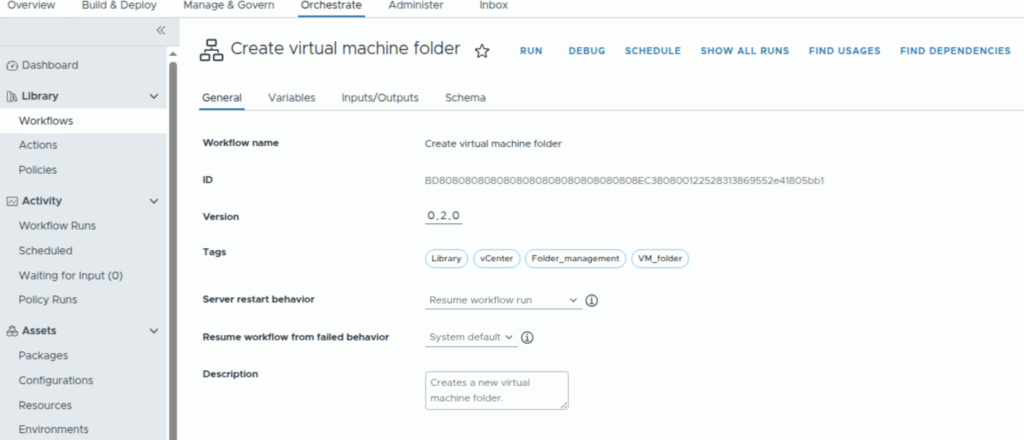
Run that workflow and provide parent folder where subfolder should be deployed.

No Comments

Leave a Reply

Your email address will not be published. Required fields are marked *

This site uses Akismet to reduce spam. Learn how your comment data is processed.

VMware
VCF, backup configuration

Backup implementation for VMware component is fairly easy. Just the requirements is to configure SFTP server in proper way and make it network available to the VMware components. SDDC Manager and NSX Manager backup In VCF Operations it is possible to configure backup for SDDC Manager and NSX Manager. Go …

VMware
VCF Automation, fresh environment configuration with identity providers and access control.

Introduction Login Login as user admin to the Organization name: system or if selected manual: Check the connections (in Administration section), where you should see connection to the vCenter and NSX-t manager as those are provided automatically via VCF Operations: the same for VCF Instances: Also check your networking: Identity …

VMware
VCF SoS

SoS (Supportability and Serviceability) command can be used for troubleshooting purpose to generate VCF (per component) log bundle, massively enable/disable ssh service on ESXi, vCenter, password and certificates expiry status, verify cluster health and many other. while troubleshooting, the following commands can be helpful: